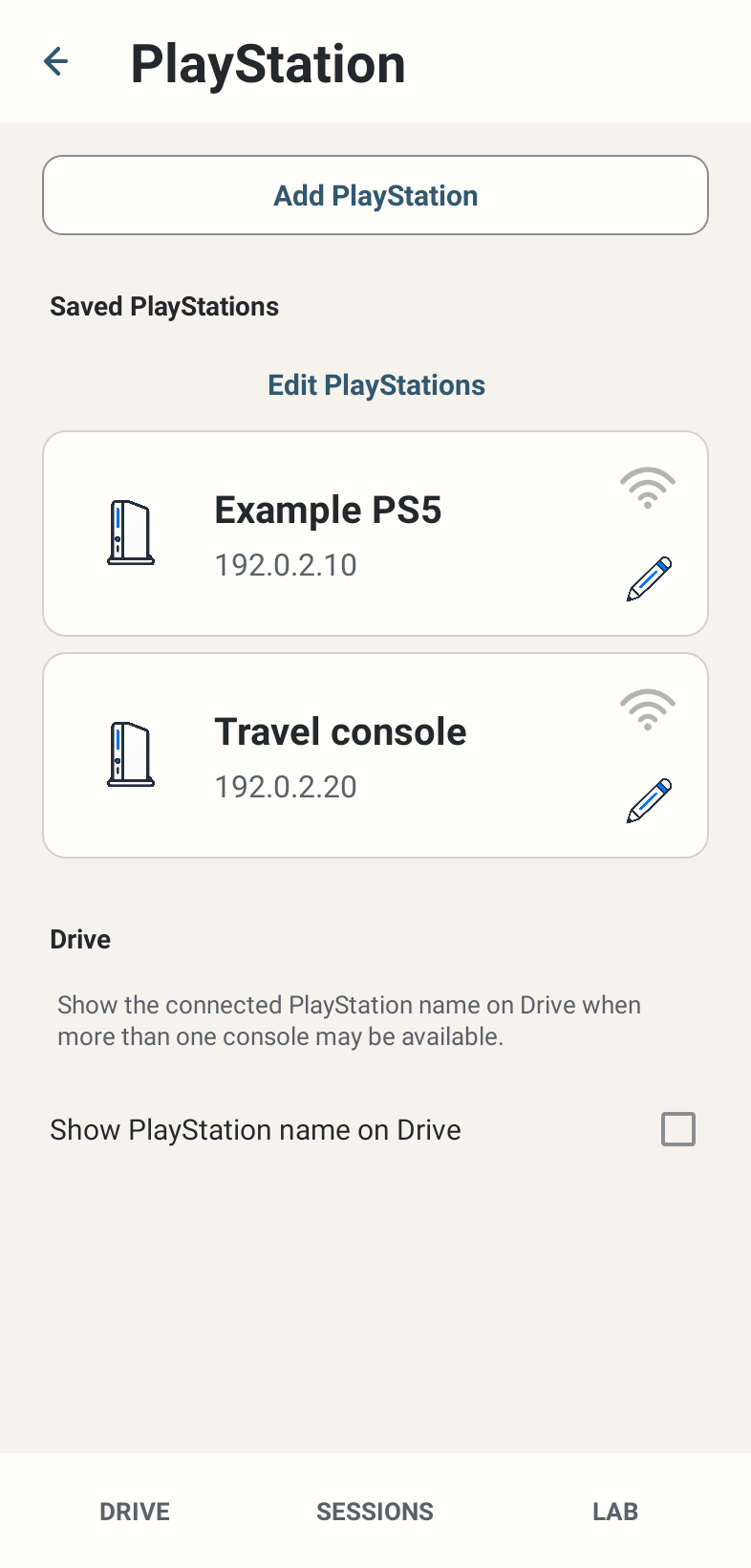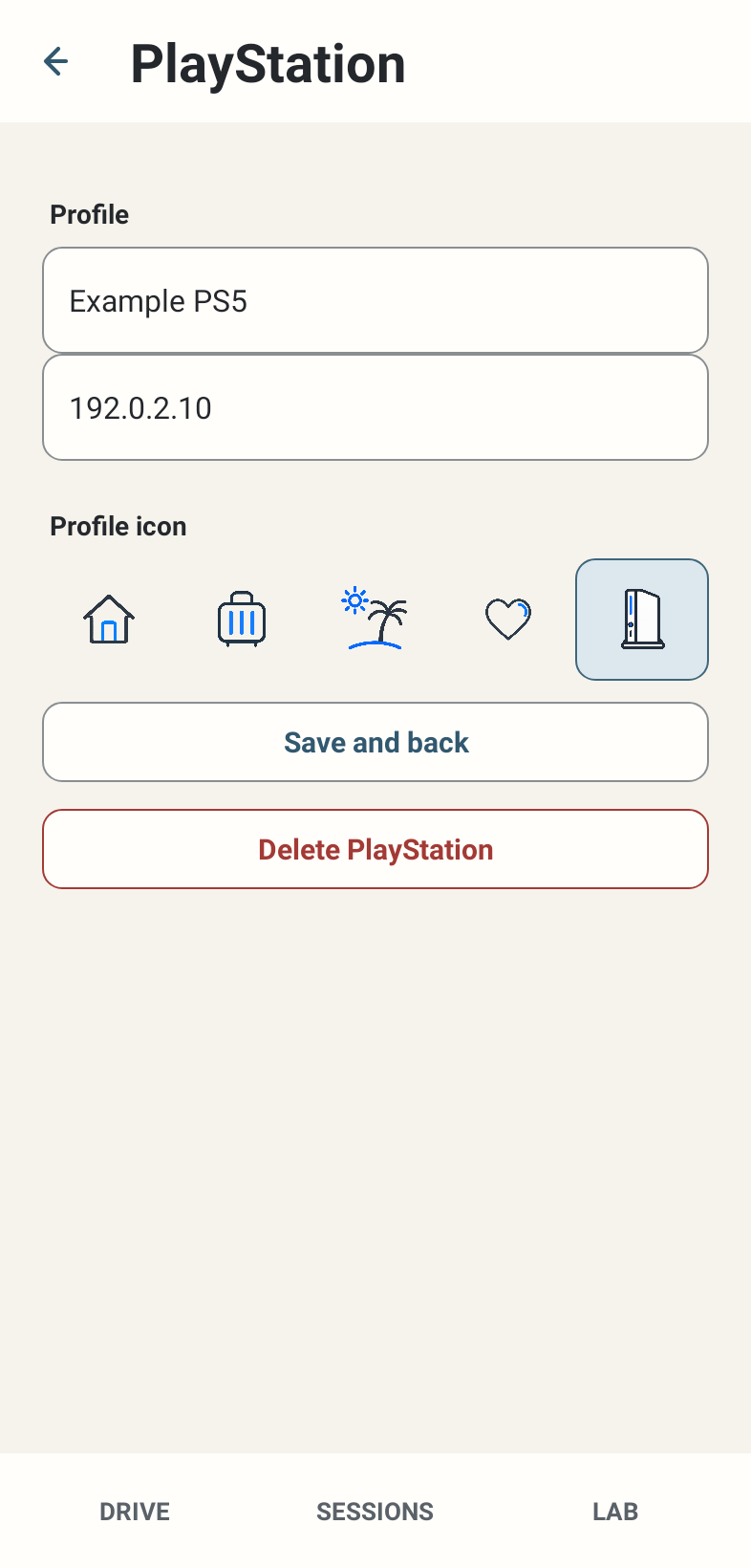
Where: Settings → PlayStation. A saved card has a Connect action and an editor; list editing provides reordering and deletion.
How to use it
- Choose Add PlayStation, enter the console address and use Connect. The new profile name initially defaults to PlayStation; saved names and icons can be edited.
- Find the IPv4 address on PS4 under Settings → Network → View Connection Status, or PS5 under Settings → Network → Connection Status → View Connection Status. The address can change after a network change.
- Edit a saved profile to change its name/address/icon and Save changes. Deleting a profile removes its saved configuration, not recorded Sessions.
- Use the list editor’s move controls to arrange the visual order. Up to five profiles are supported. Visual reordering does not rewrite successful-use history.
- Choose a saved card’s Connect to use that exact target. Smart START uses the most recently successful target and recency policy rather than treating the visible top card as a guaranteed first connection.
- If the network changes, recheck the actual console address and local reachability. Never post your real console IP in public support.
Options and defaults
Add PlayStation
- Default
- No profiles on fresh install
- Options
- Maximum five
- Meaning
- Connect saves valid configuration and begins the flow
Profile name
- Default
- PlayStation for a new profile
- Options
- Editable text
- Meaning
- A visual label; not telemetry evidence
Profile icon
- Default
- Console for a new profile
- Options
- Home / Travel / Holiday / Love / Console
- Meaning
- Visual identity only
Visual order
- Default
- Saved list order
- Options
- Move up / down in list editor
- Meaning
- Independent from successful-use connection priority
Show PlayStation name on Drive
- Default
- OFF
- Options
- On / Off
- Meaning
- Shows the connected profile name on Drive
How it works
Profiles store local connection configuration. Only received telemetry can confirm the intended live connection. Multiple saved profiles are convenience configuration, not simultaneous telemetry streams.
Limitations
A profile can remain saved while the console is off, GT7 is not producing data or network isolation blocks traffic. No profile list can bypass those conditions.